


How to Keep Your Laptop Running Fast: 10 Simple Tips and Tricks
A laptop is an important device for students, professionals, business owners, and everyday users. Whether you use it for studying, office work, gaming, or entertainment, a slow laptop can affect your productivity and experience.
Over time, laptops may become slower because of limited storage, too many background applications, outdated software, overheating, or hardware limitations.
The good news is that you can improve your laptop's performance by following some simple maintenance practices. In this guide, we will explain 10 practical tips to help keep your laptop running smoothly.
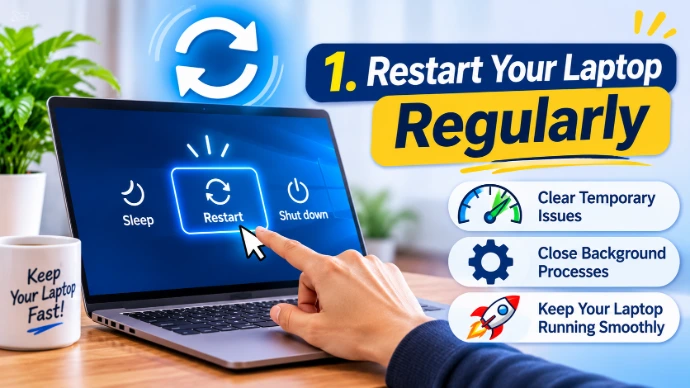
1. Restart Your Laptop Regularly
Restarting your laptop can help clear temporary system states, close background processes, and resolve some minor software problems.
If you usually keep your laptop in sleep mode, consider restarting it regularly, especially when you notice performance issues.
Tip: Save your work before restarting your device.
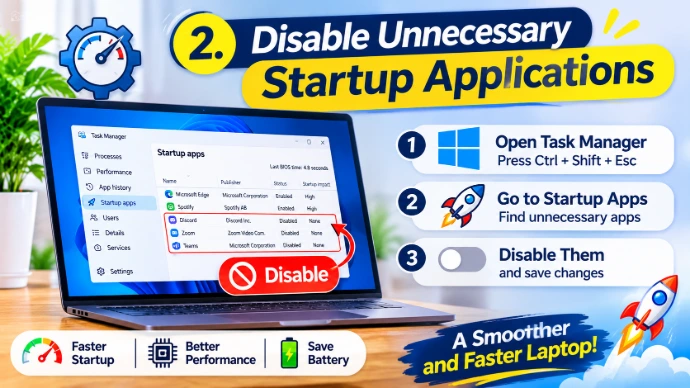
2. Disable Unnecessary Startup Applications
Some applications automatically start when you turn on your laptop. Too many startup applications can increase boot time and consume system resources.
On Windows 10 or Windows 11:
Press Ctrl + Shift + Esc to open Task Manager.
Select Startup apps.
Review the applications listed.
Disable applications that you do not need to start automatically.
Avoid disabling essential security or system applications.
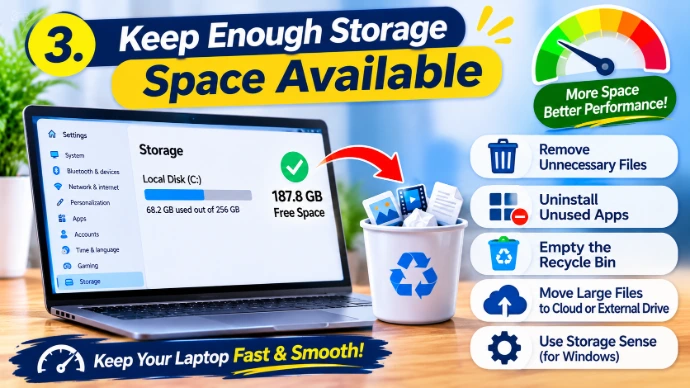
3. Keep Enough Storage Space Available
When your storage drive becomes almost full, installing updates, saving files, and performing everyday tasks can become difficult.
You can free up storage by:
Removing unnecessary files.
Uninstalling applications you no longer use.
Emptying the Recycle Bin.
Moving large personal files to external storage or cloud storage.
Using Windows Storage settings to identify temporary files.
Tip: Always check files before deleting them to avoid losing important information.
4. Update Your Operating System and Drivers
Software updates often include security improvements, bug fixes, and compatibility enhancements.
For Windows:
Open Settings.
Select Windows Update.
Click Check for updates.
Install available updates.
Restart your laptop if required.
You should also check for driver updates from your laptop manufacturer's official support website.
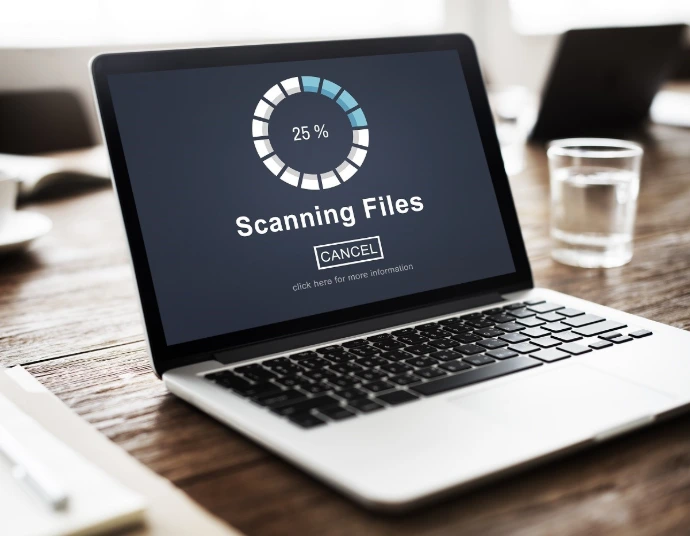
5. Scan Your Laptop for Malware
Malware can affect system performance, access personal information, and create security risks.
Windows includes Microsoft Defender Antivirus, which can help detect and remove malicious software.
To perform a scan:
Open Windows Security.
Select Virus & threat protection.
Click Quick scan.
Follow the recommendations if any threats are detected.
For a more detailed check, you can use a full scan.
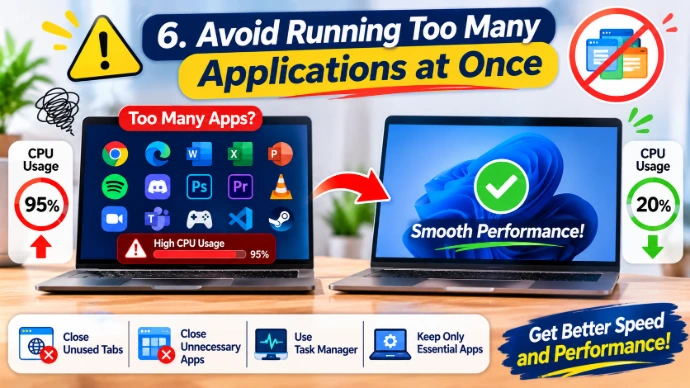
6. Avoid Running Too Many Applications at Once
Running many applications simultaneously can use a large amount of RAM and CPU resources.
For example, opening multiple browser tabs, editing videos, and running heavy applications together may slow down a laptop with limited hardware resources.
Close applications and browser tabs that you are not currently using.
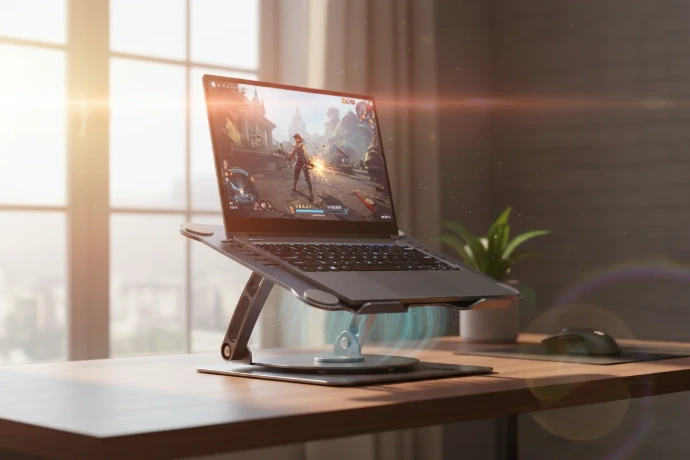
7. Keep Your Laptop Cool
Overheating can cause a laptop to reduce its processor speed to control temperature. This is commonly known as thermal throttling.
To help prevent overheating:
Use your laptop on a flat, hard surface.
Keep ventilation openings clear.
Avoid placing your laptop on blankets or pillows.
Clean dust from the cooling system when necessary.
Use a suitable cooling pad if your laptop needs additional cooling.
If your laptop frequently overheats, consider having its cooling system inspected by a qualified technician.
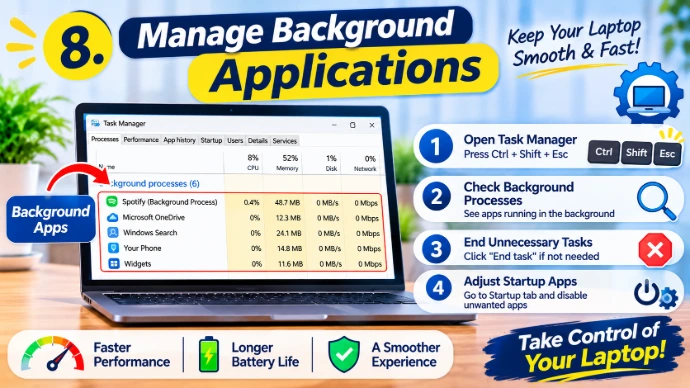
8. Manage Background Applications
Some applications continue running in the background even when you are not actively using them.
On Windows, you can review background activity and application permissions through Settings. You can also use Task Manager to identify applications consuming excessive CPU, memory, or disk resources.
Only close applications that you recognize and do not need.
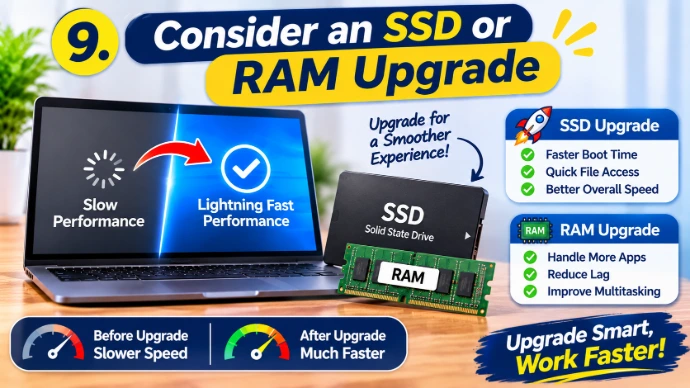
9. Consider an SSD or RAM Upgrade
If your laptop is still slow after basic maintenance, its hardware may be limiting performance.
Two possible upgrades are:
SSD Upgrade: Replacing an older mechanical hard drive (HDD) with a compatible solid-state drive (SSD) can significantly improve startup times and file loading speeds.
RAM Upgrade: Increasing RAM can help when you regularly use multiple applications or work with memory-intensive software.
Before upgrading, check your laptop model, supported RAM capacity, storage interface, and available upgrade slots.

10. Back Up Your Important Data
Laptop maintenance is not only about speed. Protecting your personal files is equally important.
You can back up important documents, photos, videos, and projects using:
External hard drives.
USB storage devices.
Cloud storage services.
Other secure backup solutions.
Keep important backups separate from your laptop so that you can recover your files if the device is damaged, lost, or affected by malware.