

Gaming & PC Building: A Beginner's Complete Guide to Building the Perfect Gaming PC
Gaming has become one of the most popular forms of digital entertainment. Whether you enjoy competitive games, open-world adventures, racing games, or online multiplayer games, having a good gaming PC can make your experience smoother and more enjoyable.
Building your own gaming PC may seem difficult at first, especially when you have to choose between different processors, graphics cards, RAM, storage devices, and motherboards. However, understanding the basic components can make the process much easier.
In this guide, we will explain the important parts of a gaming PC, how they work, and how beginners can build a computer that matches their gaming needs and budget.
1. What Is a Gaming PC?
A gaming PC is a computer designed to run video games smoothly and handle demanding applications. Unlike a basic office computer, a gaming PC generally includes a dedicated graphics card, a powerful processor, sufficient memory, and an effective cooling system.
Gaming PCs can also be used for video editing, graphic design, 3D modelling, streaming, and other demanding tasks.
The performance of a gaming PC depends on how well its components work together.
2. Important Components Needed to Build a Gaming PC
Before building a gaming computer, it is important to understand the main hardware components.
CPU (Central Processing Unit)
The CPU is often called the brain of a computer. It processes instructions, performs calculations, and manages tasks running on the system.
For gaming, a good processor helps manage game logic, background applications, and other system activities.
Popular processor families include Intel Core and AMD Ryzen.
GPU (Graphics Processing Unit)
The GPU is responsible for rendering images, videos, animations, and other visual content.
A dedicated graphics card is especially important for gaming because modern games require significant graphics processing power.
Popular graphics card families include NVIDIA GeForce RTX and AMD Radeon RX.
RAM (Random Access Memory)
RAM temporarily stores data that the computer needs while running applications.
Having enough RAM helps games and other applications operate smoothly. For many modern gaming PCs, 16 GB is a practical starting point, while 32 GB can be useful for demanding games, multitasking, and content creation.
Motherboard
The motherboard connects the CPU, RAM, GPU, storage, and other components.
When choosing a motherboard, check that it supports your processor socket, memory type, storage requirements, and other hardware connections.
Storage (SSD and HDD)
Storage is where your operating system, games, applications, and personal files are saved.
An SSD provides faster loading and boot times than a traditional HDD in many common computer tasks.
An NVMe SSD is a popular choice for modern gaming computers because it offers high-speed storage through a compatible M.2 connection.
Power Supply Unit (PSU)
The PSU supplies electrical power to all computer components.
Choose a reliable power supply with enough wattage for your CPU and graphics card. Also check its power connectors, efficiency rating, and quality.
Computer Case
The computer case holds and protects the internal components.
Choose a case that supports your motherboard size, graphics card length, CPU cooler height, and cooling requirements.
Cooling System
Gaming computers can produce considerable heat, particularly during demanding tasks.
Cooling systems help maintain suitable operating temperatures. Common options include air coolers, liquid coolers, and case fans.
3. How to Choose the Right Gaming PC Components
Choosing compatible components is one of the most important parts of building a gaming PC.
Consider these factors before purchasing:
Processor: Choose a CPU that matches your gaming and multitasking requirements.
Graphics card: Select a GPU according to your target resolution, graphics settings, and game requirements.
RAM: Consider 16 GB or 32 GB depending on your intended usage.
Storage: Choose an SSD with enough capacity for your operating system and games.
Motherboard: Check processor socket and memory compatibility.
Power supply: Ensure that the PSU can safely support the complete system.
Cooling: Select a suitable cooling solution for your processor and case.
Always check the manufacturer's specifications before purchasing components.
4. Step-by-Step Guide to Building a Gaming PC
Building a gaming PC requires patience and careful handling. Follow these general steps:
Step 1: Prepare Your Workspace
Choose a clean, flat working surface with enough space. Keep your components and tools organized. Avoid working on carpets where possible and take precautions against electrostatic discharge.
Step 2: Install the CPU
Carefully install the processor into the compatible motherboard socket. Follow the motherboard and processor manufacturer's instructions. Never force the CPU into its socket.
Step 3: Install RAM
Insert the RAM modules into the recommended motherboard slots. Make sure they are properly aligned and secured.
Step 4: Install the SSD
Install your M.2 SSD into the appropriate motherboard slot or connect a SATA SSD using the required cables.
Step 5: Install the CPU Cooler
Attach the CPU cooler according to its manufacturer's instructions. Apply thermal paste if required by the cooler design.
Step 6: Install the Motherboard
Carefully place the motherboard inside the computer case and secure it using the correct screws and standoffs.
Step 7: Install the Graphics Card
Insert the graphics card into the appropriate PCIe slot and secure it to the case. Connect the required power cables.
Step 8: Connect the Power Supply
Install the PSU and connect the required motherboard, CPU, GPU, and storage power cables.
Step 9: Check All Connections
Before switching on the computer, check the cable connections, cooling fans, and component installation.
Step 10: Start the PC and Install the Operating System
Connect your monitor, keyboard, and mouse. Start the computer, enter the BIOS or UEFI settings to check that the hardware is detected, and install your operating system. Finally, install the required drivers and system updates.
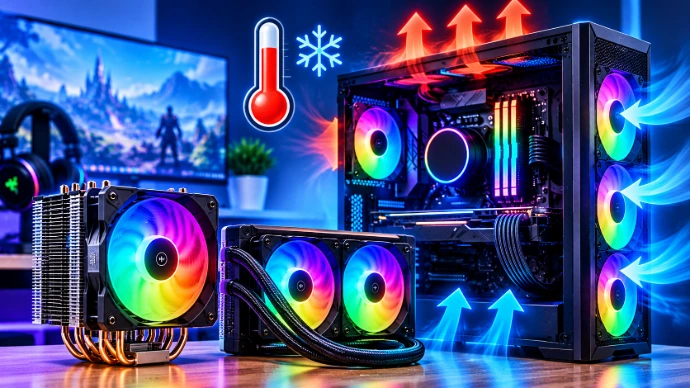
5. Why Is Cooling Important for Gaming PCs?
Gaming can put a heavy workload on the CPU and GPU. As a result, these components generate heat.
Without proper cooling, high temperatures may cause thermal throttling, where components reduce their performance to manage heat.
Here are some useful cooling tips:
Keep air vents free from dust.
Use suitable case fans.
Maintain proper airflow inside the case.
Clean dust filters regularly.
Choose a compatible CPU cooler.
Monitor CPU and GPU temperatures during demanding tasks.
Good airflow helps maintain stable system performance and supports the long-term reliability of computer components.
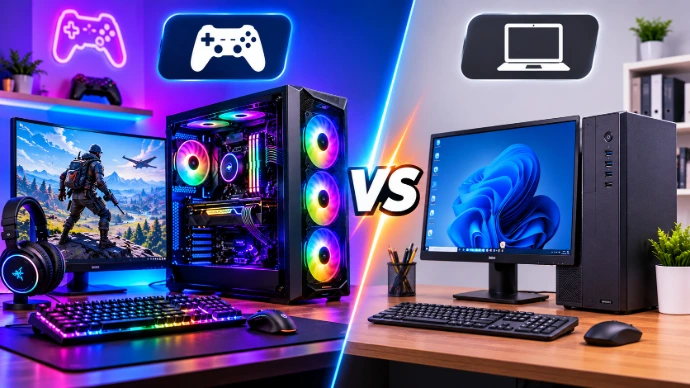
6. Gaming PC vs Regular PC: What Is the Difference?
A gaming PC and a regular office PC are designed for different purposes.
| Feature | Gaming PC | Regular PC |
|---|---|---|
| Processor | Often higher-performance CPU | Basic to mid-range CPU |
| Graphics | Usually dedicated GPU | Often integrated graphics |
| RAM | Commonly 16–32 GB | Often 8–16 GB |
| Cooling | More demanding cooling requirements | Usually simpler cooling |
| Storage | SSD, sometimes with additional HDD | SSD or HDD |
| Main purpose | Gaming and demanding tasks | Office work and everyday tasks |
The best choice depends on your requirements and budget.
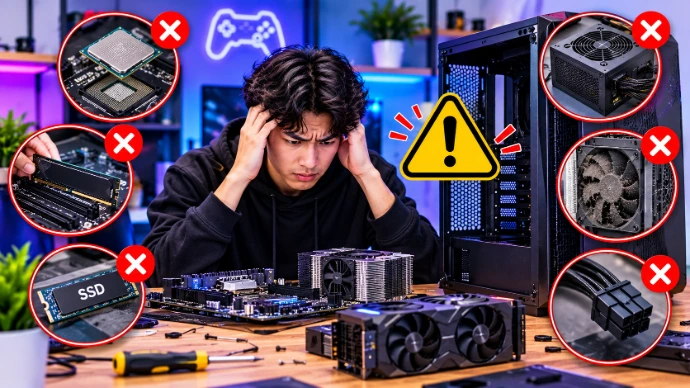
7. Common Mistakes to Avoid When Building a Gaming PC
Beginners sometimes make mistakes when selecting and installing computer components.
Avoid these common problems:
Ignoring compatibility: Not every processor works with every motherboard.
Choosing an insufficient PSU: An unsuitable power supply can cause system instability.
Buying too little storage: Large games and applications can require considerable space.
Ignoring cooling: Poor airflow can result in high operating temperatures.
Installing components incorrectly: Always follow the manufacturer's installation instructions.
Forgetting drivers: Updated drivers help hardware and software communicate correctly.
Planning your build before purchasing components can prevent unnecessary expenses.
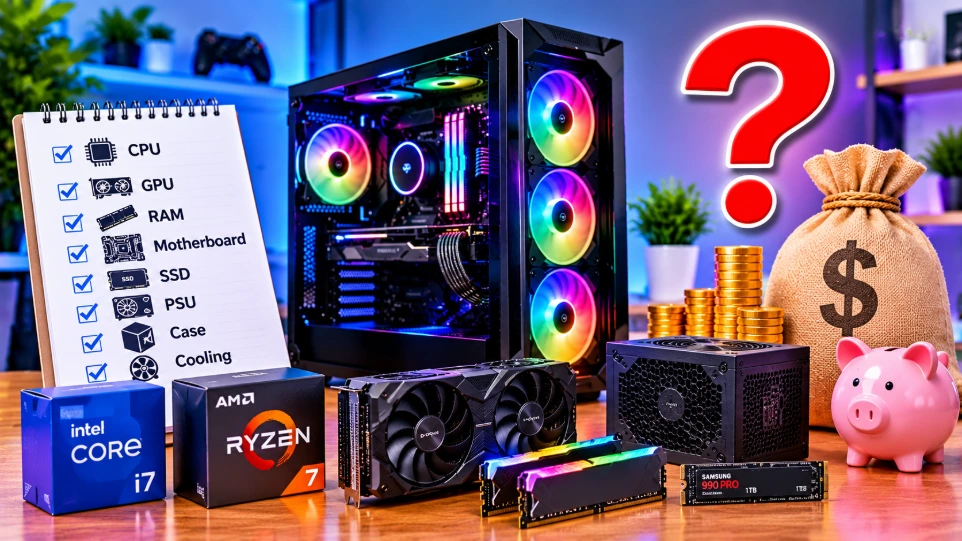
8. How Much Does It Cost to Build a Gaming PC?
The cost of a gaming PC depends on the selected hardware, performance requirements, and local market prices.
A basic gaming setup can be suitable for entry-level gaming, while a mid-range setup can provide better performance at higher resolutions and settings. High-end systems are designed for demanding games, high refresh rates, advanced graphics, and professional workloads.
When planning your budget, remember to include:
Processor
Graphics card
Motherboard
RAM
SSD
Power supply
Computer case
Cooling system
Monitor and peripherals
Always compare current prices and check product warranties before purchasing.
9. How to Maintain Your Gaming PC
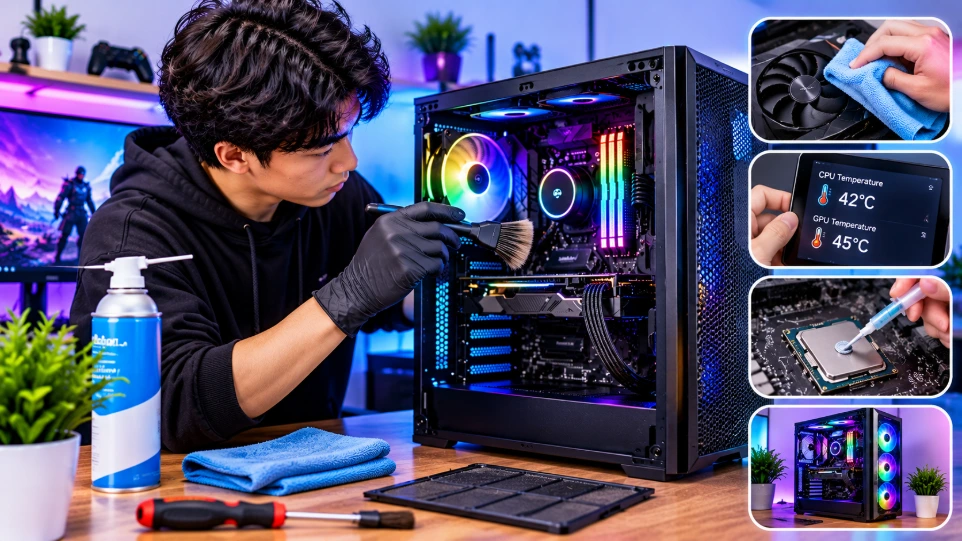
Regular maintenance helps keep your gaming PC in good working condition.
Follow these simple maintenance practices:
Clean dust from fans and filters regularly.
Keep your operating system updated.
Install appropriate graphics and chipset drivers.
Monitor CPU and GPU temperatures.
Avoid blocking the computer's air vents.
Keep enough free storage space.
Back up important files.
Shut down the computer properly when it is not in use.
Building a gaming PC is an exciting way to understand computer hardware while creating a system that meets your personal requirements.
By choosing compatible components, maintaining proper cooling, and planning your budget carefully, you can build a reliable gaming computer without spending money on unnecessary hardware.
Whether you are a beginner or an experienced gamer, understanding PC components helps you make better purchasing decisions.
Ready to build your gaming setup? Explore our range of processors, graphics cards, RAM, SSDs, motherboards, and gaming accessories to find the right components for your next PC build.